Capture the screen
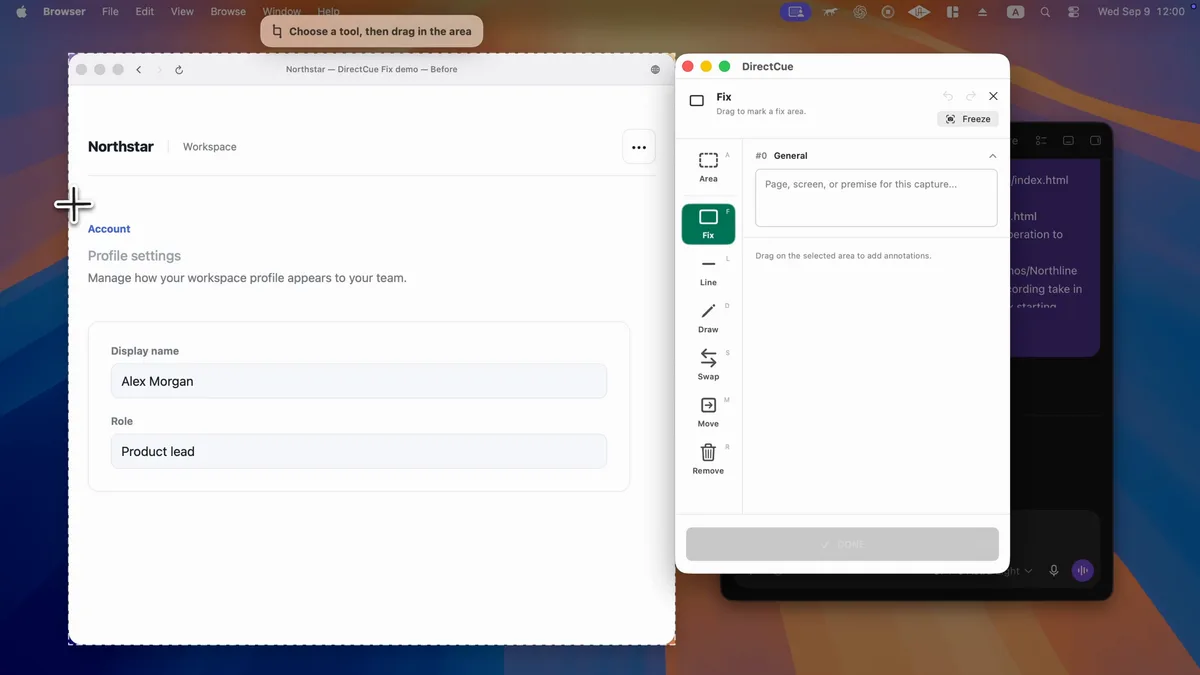
Choose an area, a window, or the entire screen you want to change.

DirectCue
Mark an area and describe the change. A Mac app that brings your image and instructions together for Codex or Claude Code.

Show the location instead of describing it in a long message.
Choose an area, a window, or the entire screen you want to change.
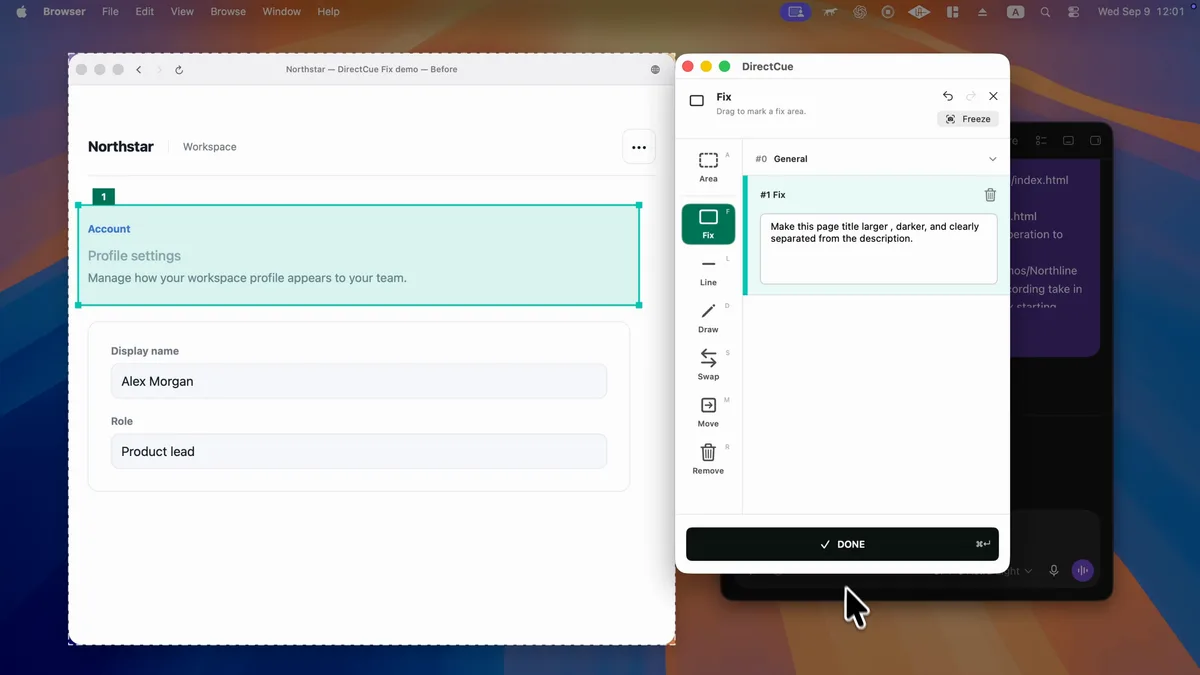
Mark the area you want to change and describe the edit.
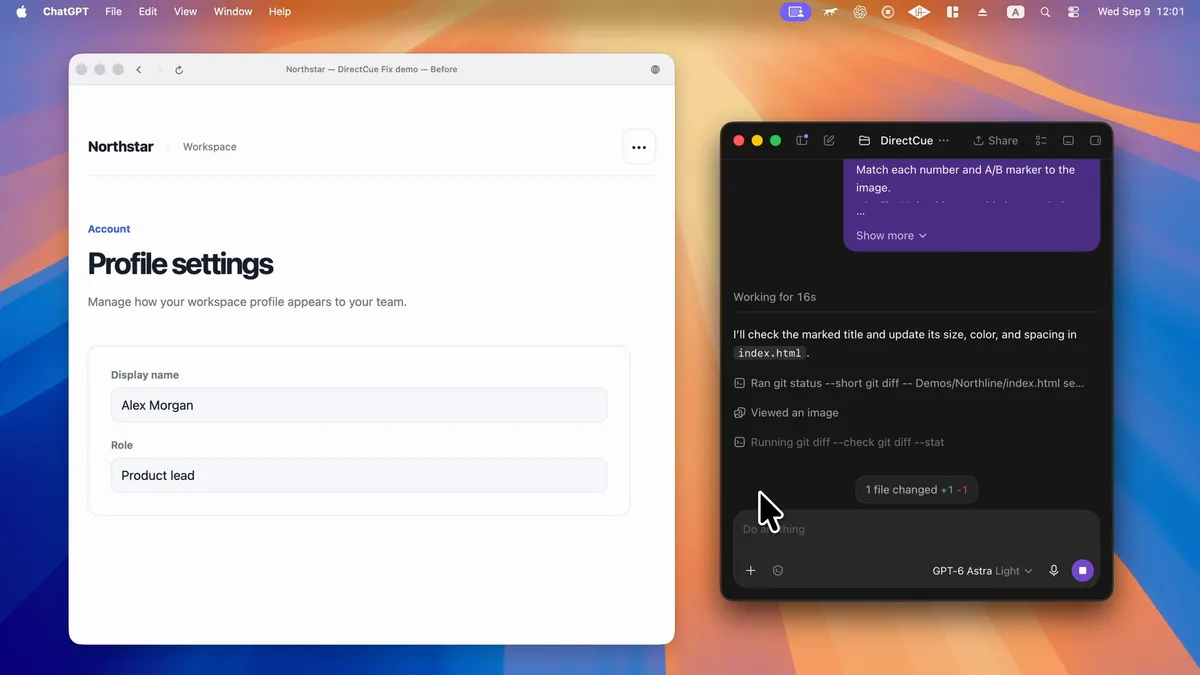
Copy the Prompt with the image path and paste it into Codex or another AI coding tool.
See the workflow in action, from marking changes to handing the instructions to AI.
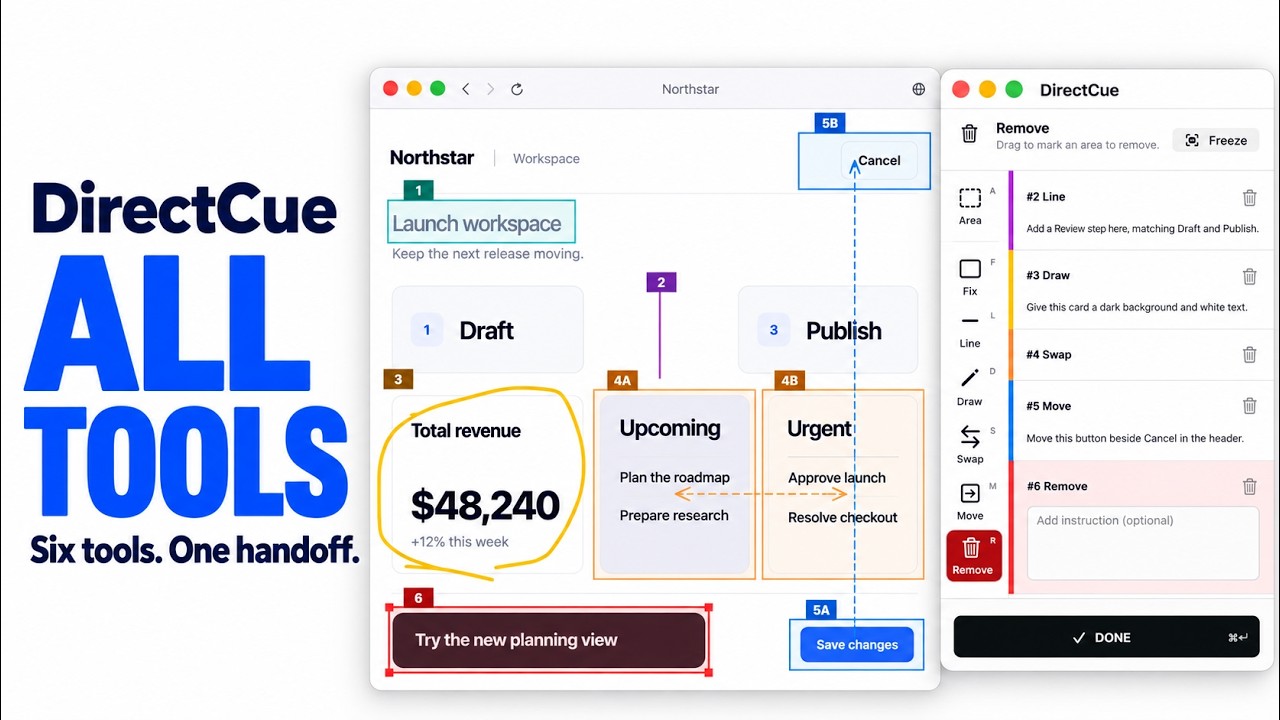
Use six on-screen tools for common change requests. Draw, Remove, Swap, and Move only need text when extra context is useful.
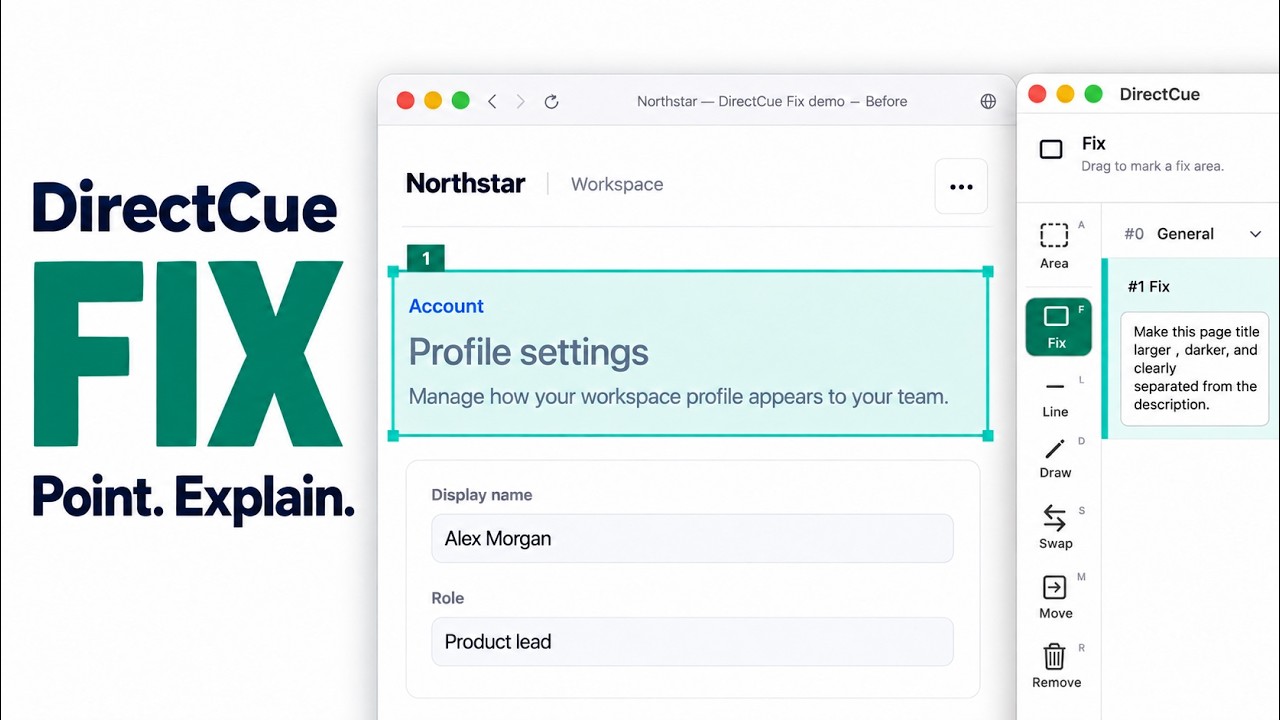
Select an area and describe what should change.
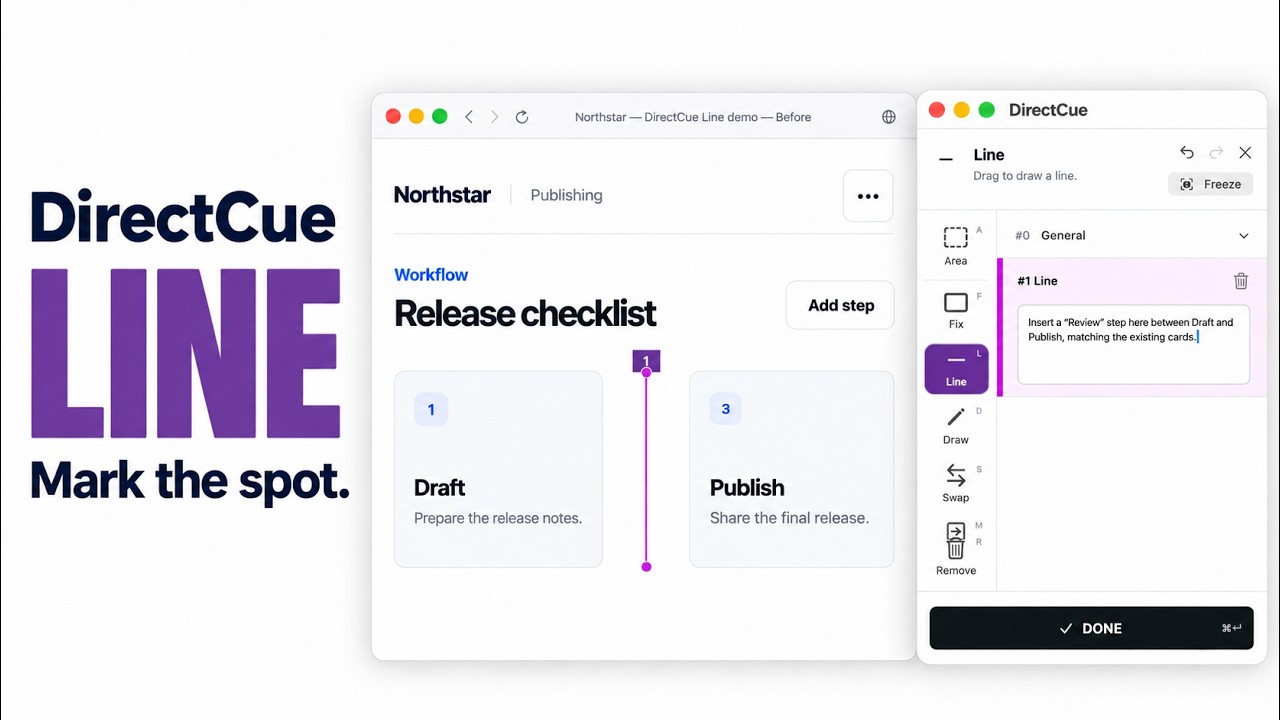
Draw a line to mark where something should be added, then describe it.
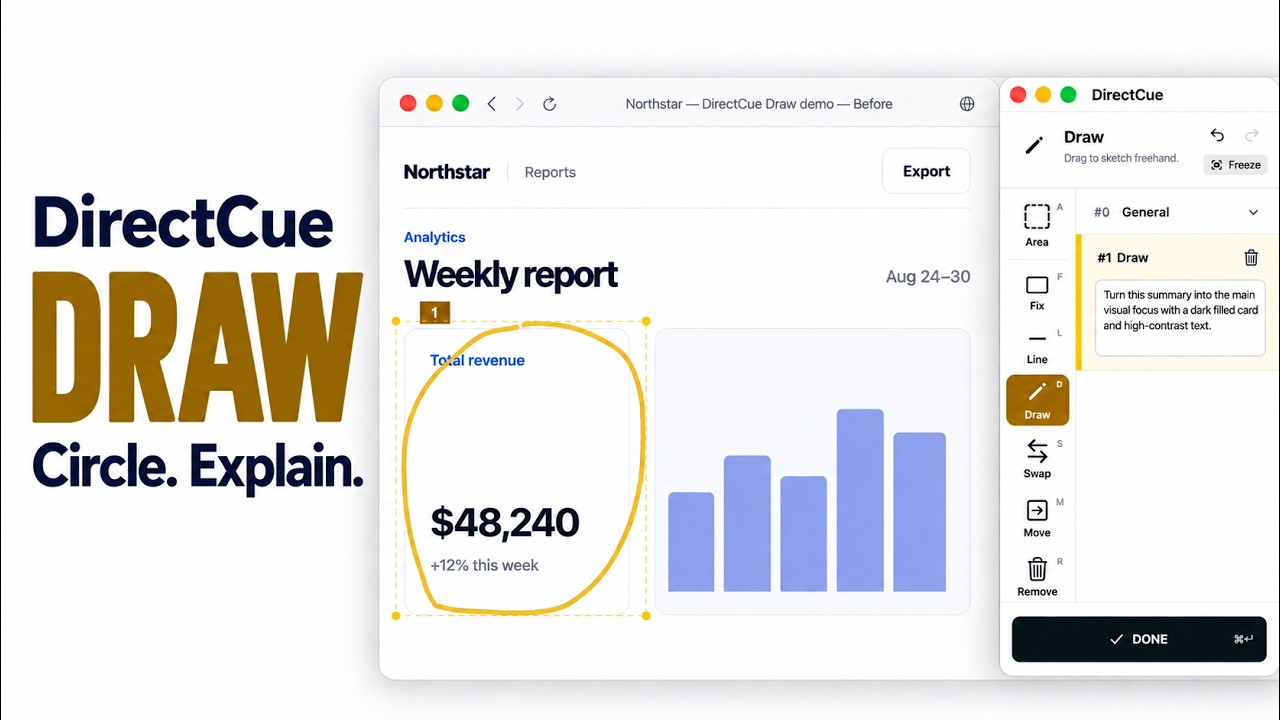
Draw a shape or motion freehand.
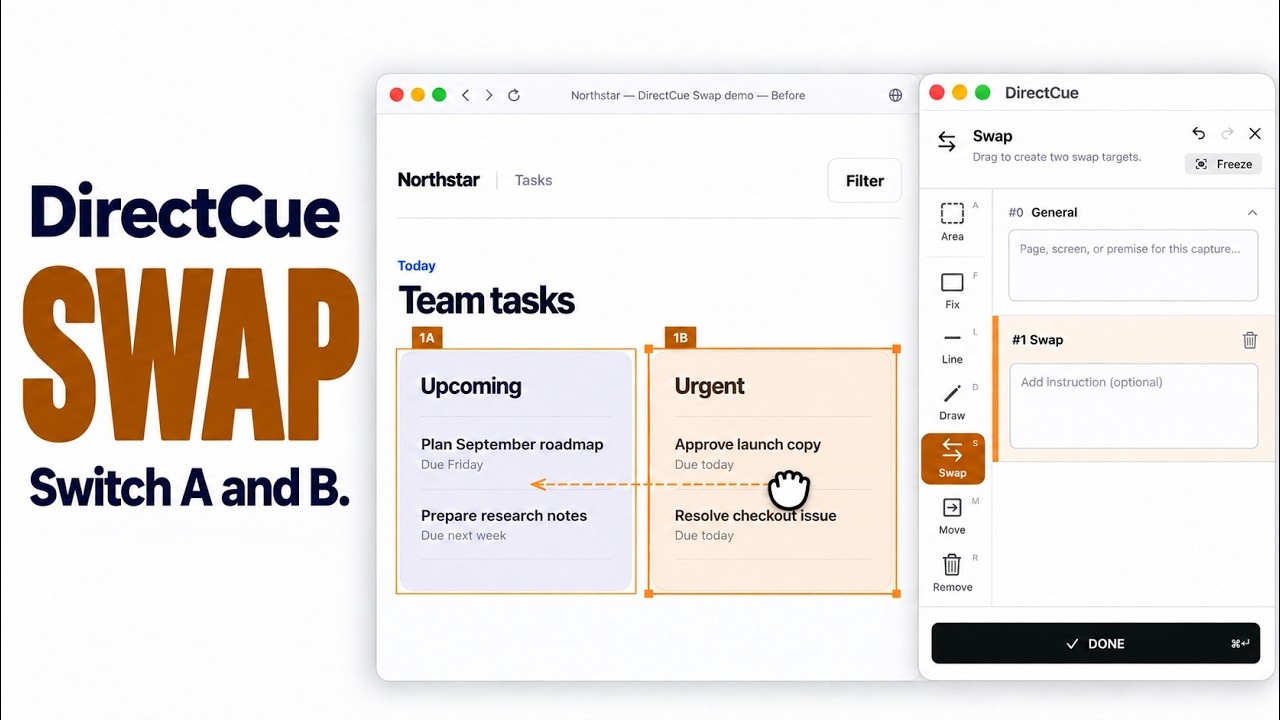
Mark A and B to show that they should be swapped.
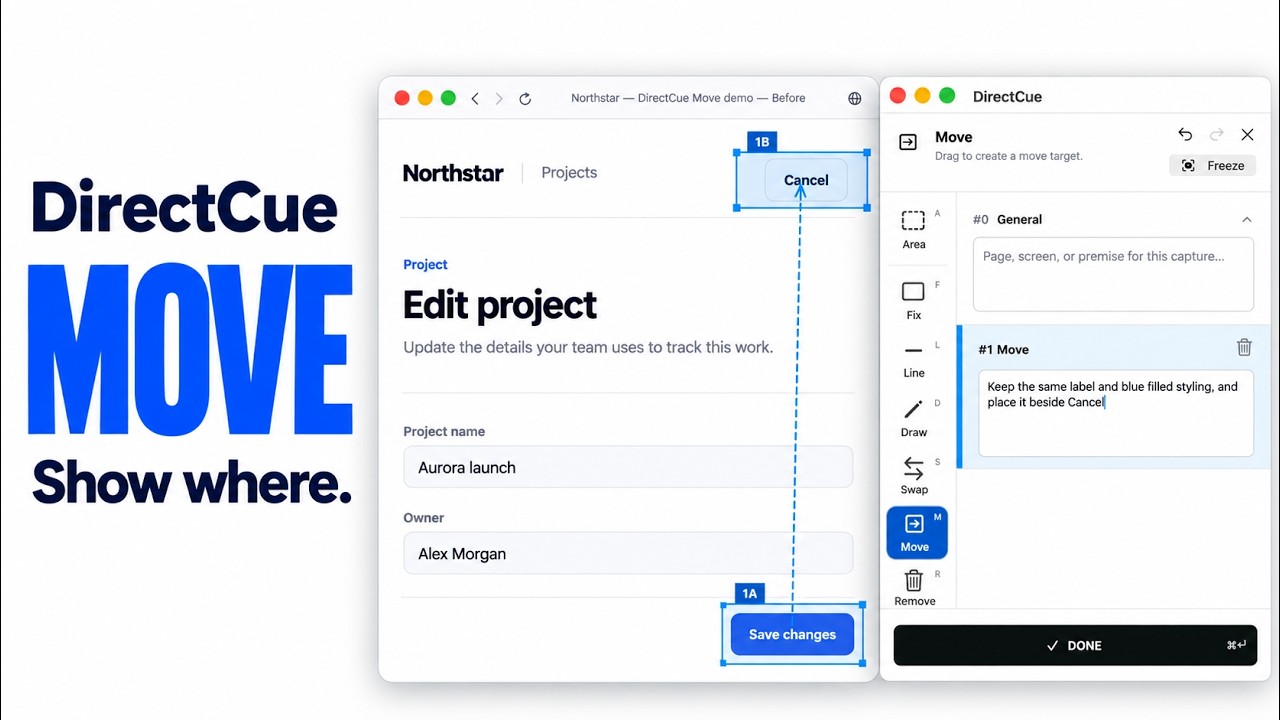
Show a move from A to B.
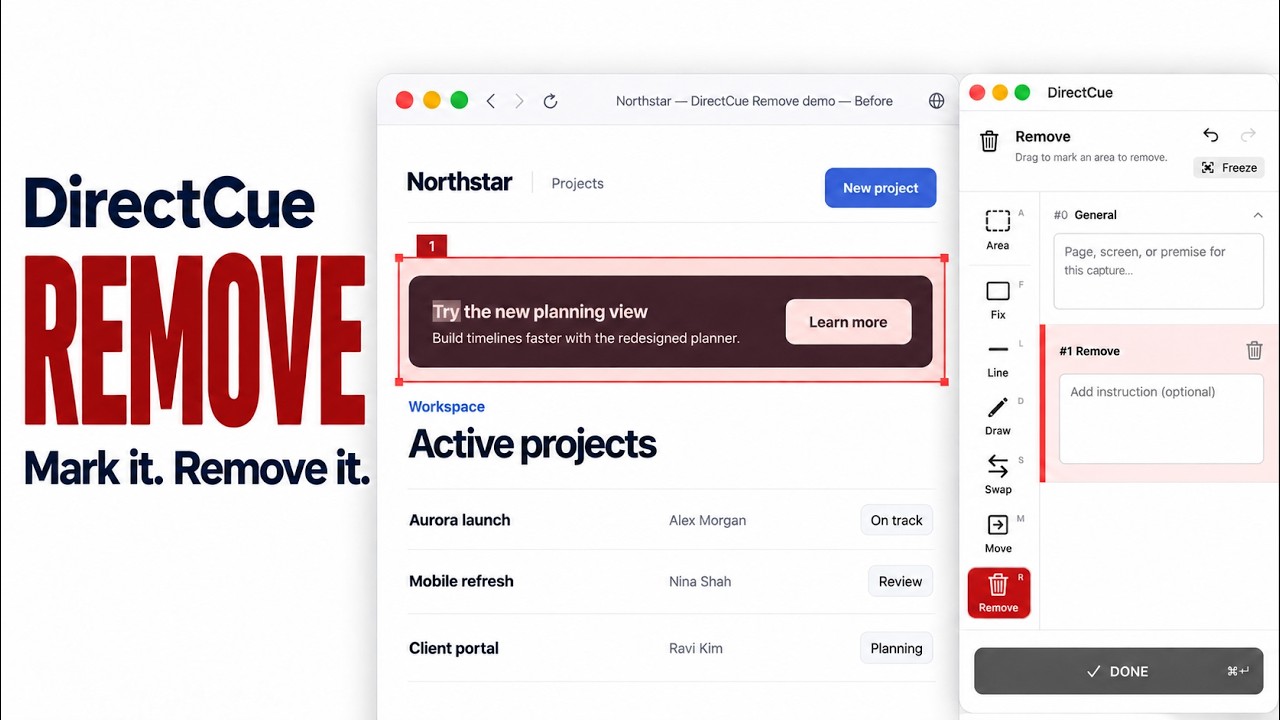
Mark an element that should be removed.
From capture to reviewing past requests, all on your Mac.
Capture temporary states such as hovers and dropdowns as a still image.
Review the original screen and the change instructions you created with it.
Captures, annotations, and Prompts are saved on your Mac and are not sent to AI automatically.
Start capture, switch tools, and finish from the keyboard.
Use DirectCue with Codex, Claude Code, Cursor, or another AI coding environment that can access local files on your Mac. The Prompt includes the annotated image path, so you can usually paste it directly. For browser-based AI, attach the annotated image manually when needed.
No. DirectCue does not modify the screen or send content to AI automatically. You choose where to hand off the Prompt.
They are stored in DirectCue's app-managed area and can be reviewed or deleted from History. They do not need to fill your desktop and are not automatically sent to the cloud or an AI service.
DirectCue requires macOS 26 or later and Screen Recording permission. For Window capture, keep the target window visible and bring it to the front.
Yes. Free includes all six tools and up to three Prompt creations per day. DirectCue Pro is a one-time purchase that removes the daily Prompt limit. It is not a subscription.
DirectCue
Mark an area and describe the change. A Mac app that brings your image and instructions together for Codex or Claude Code.