Silent BPM checks on Apple Watch
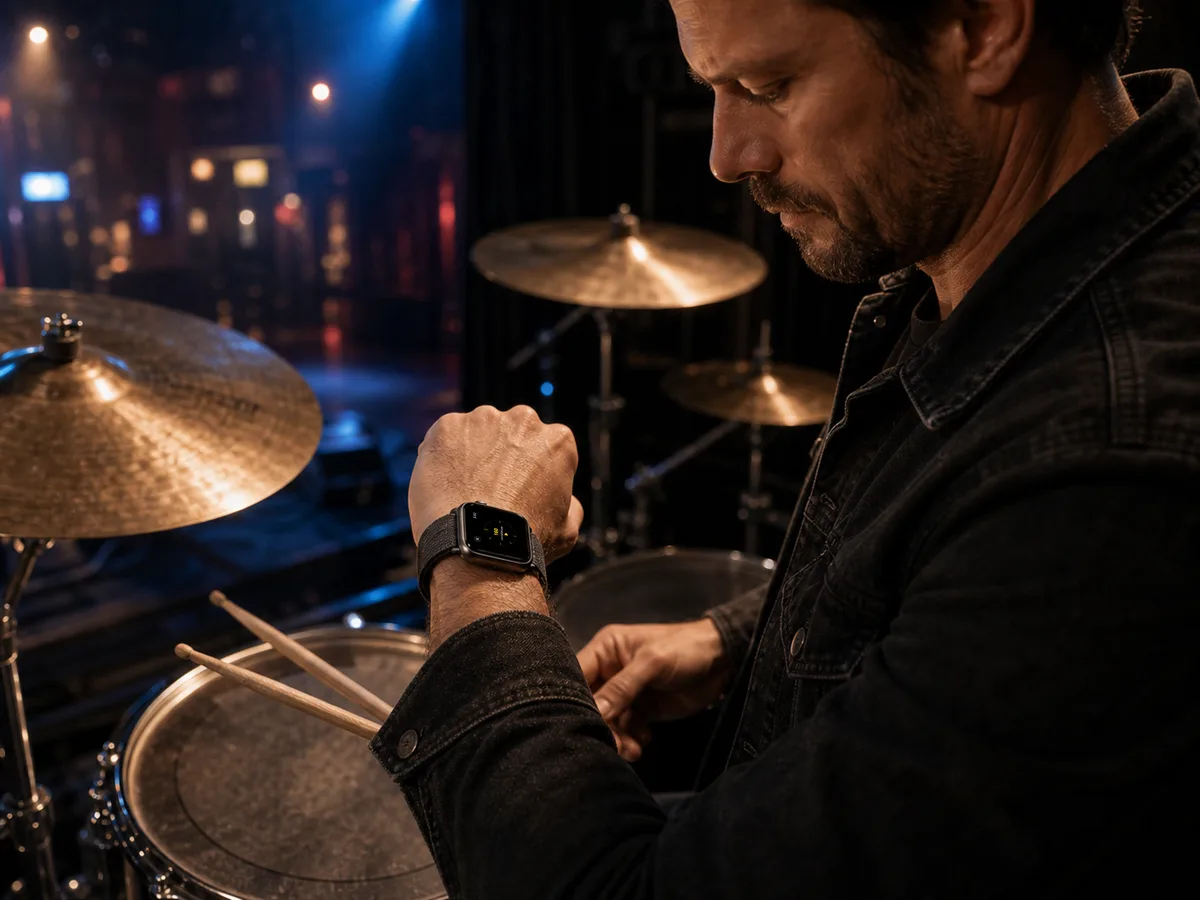
Feel the tempo through Apple Watch haptics, so you can prepare your count-in at your wrist even before a show when it is hard to keep looking at the screen.
Feel the Count
Feel the Count is a count-in prep app that lets you check the BPM and count right before starting the next song through Apple Watch or iPhone haptics.

Instead of relying on loud clicks or long screen checks, feel the tempo through Apple Watch or iPhone vibrations. Prepare each song's BPM, count length, repeats, and accents so the count fits the way you come in.
Feel the tempo through Apple Watch haptics, so you can prepare your count-in at your wrist even before a show when it is hard to keep looking at the screen.
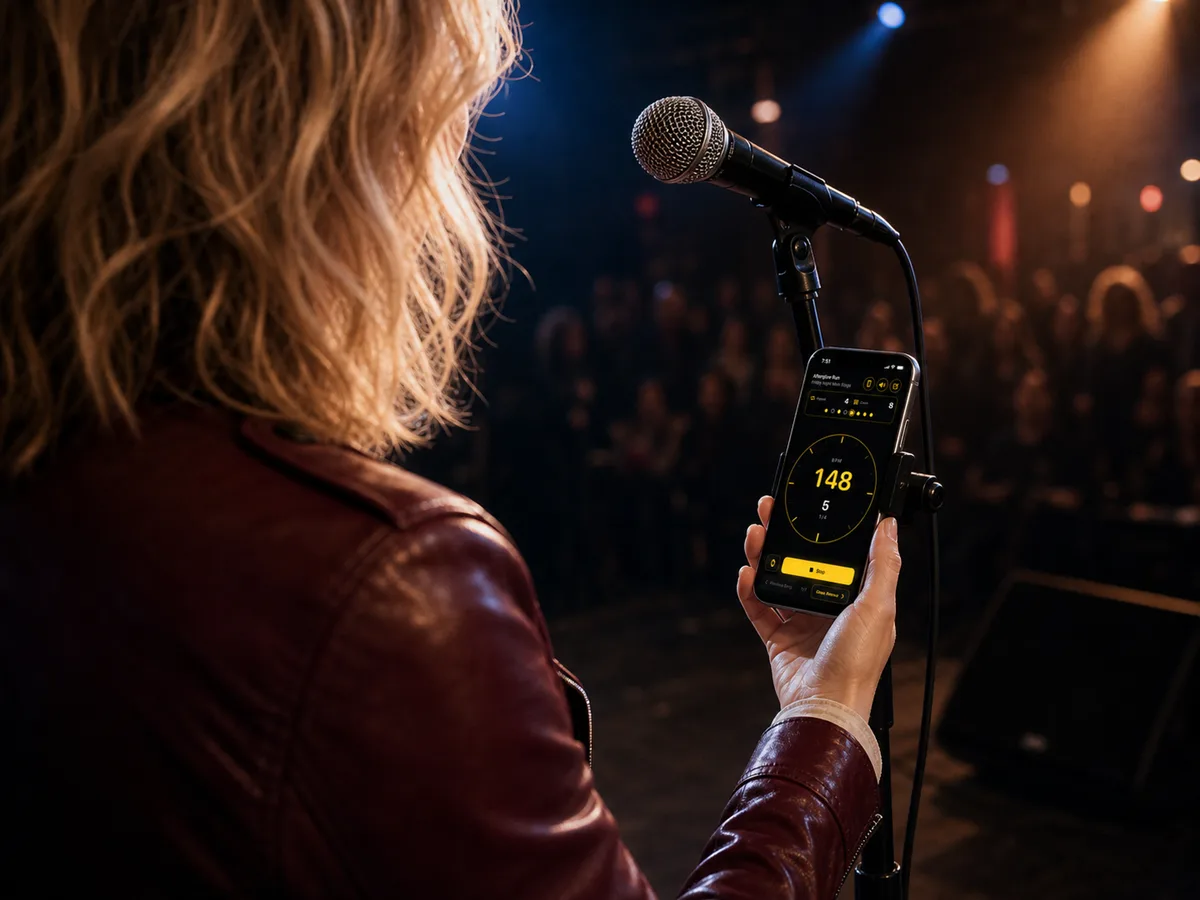
When you do not have an Apple Watch, use iPhone vibration, the screen, and click sounds together to check the tempo.
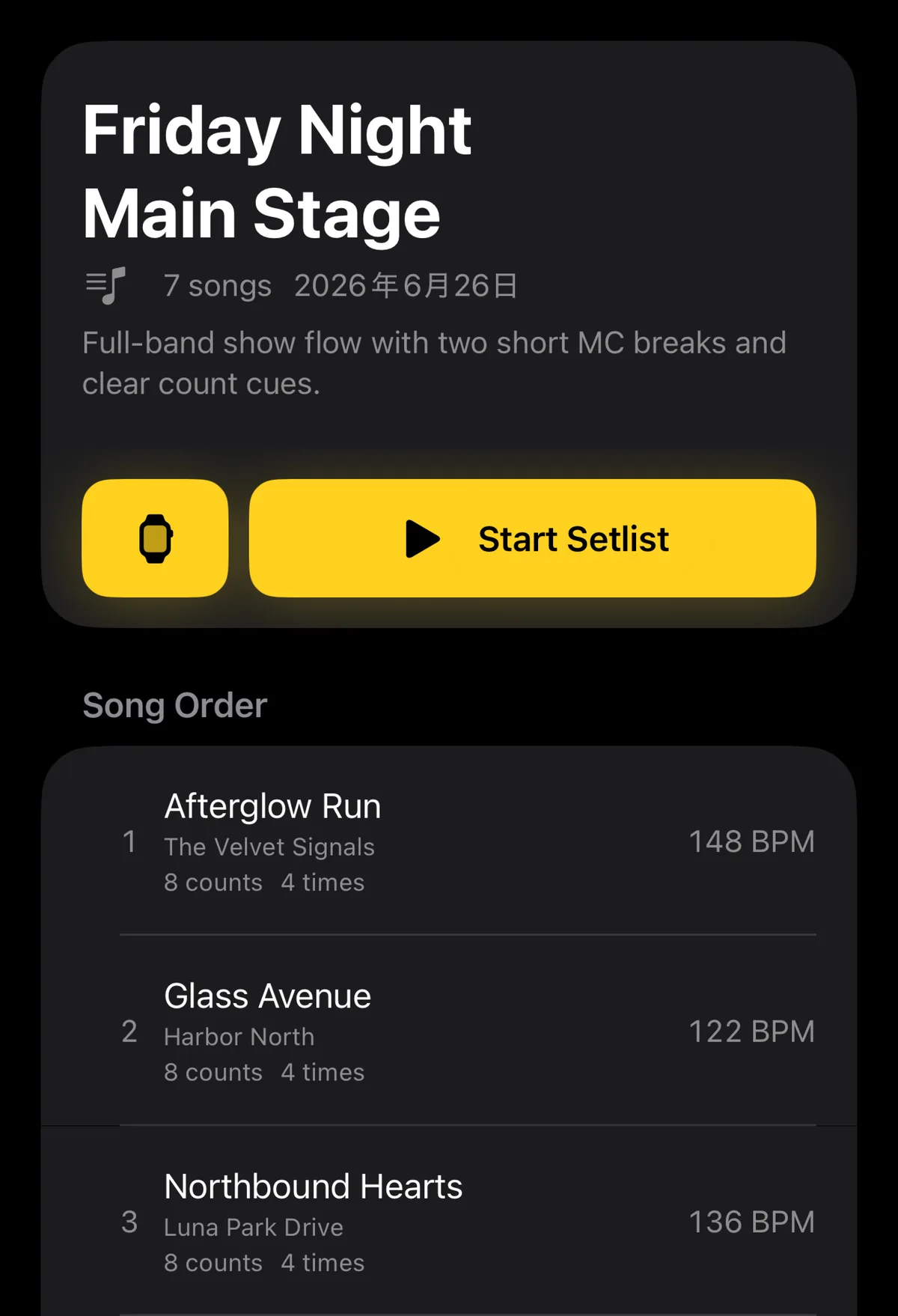
Save BPM, count length, and accents in song order. Pull up the next song's tempo along the flow of a live set or rehearsal.
Adjust BPM, count length, and accents for each count to match the song. Prepare the way each song starts.
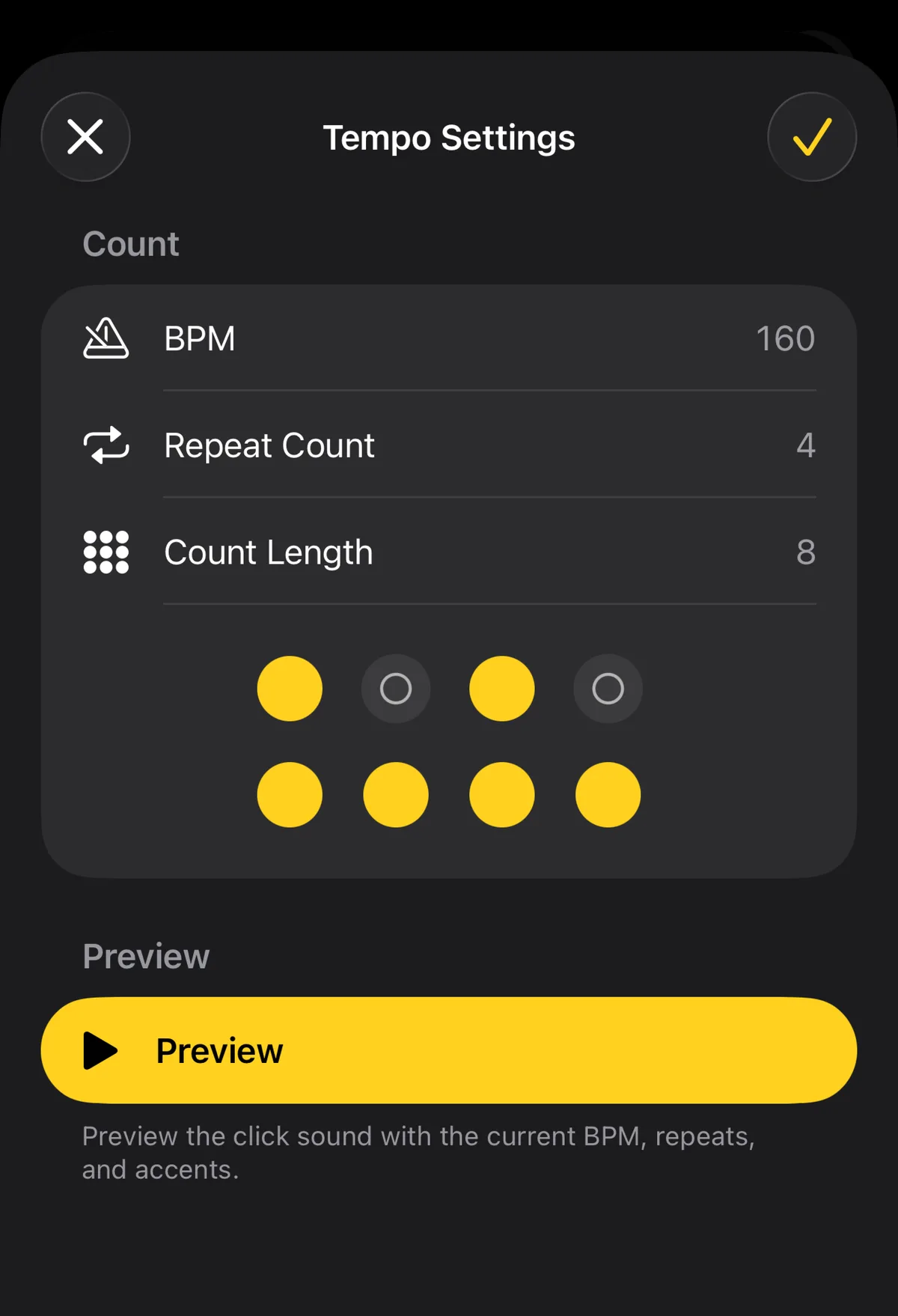
Right before a show, rehearsal, or session. Even when you cannot make sound or keep looking at the screen, use wrist or hand vibrations to settle into the tempo.
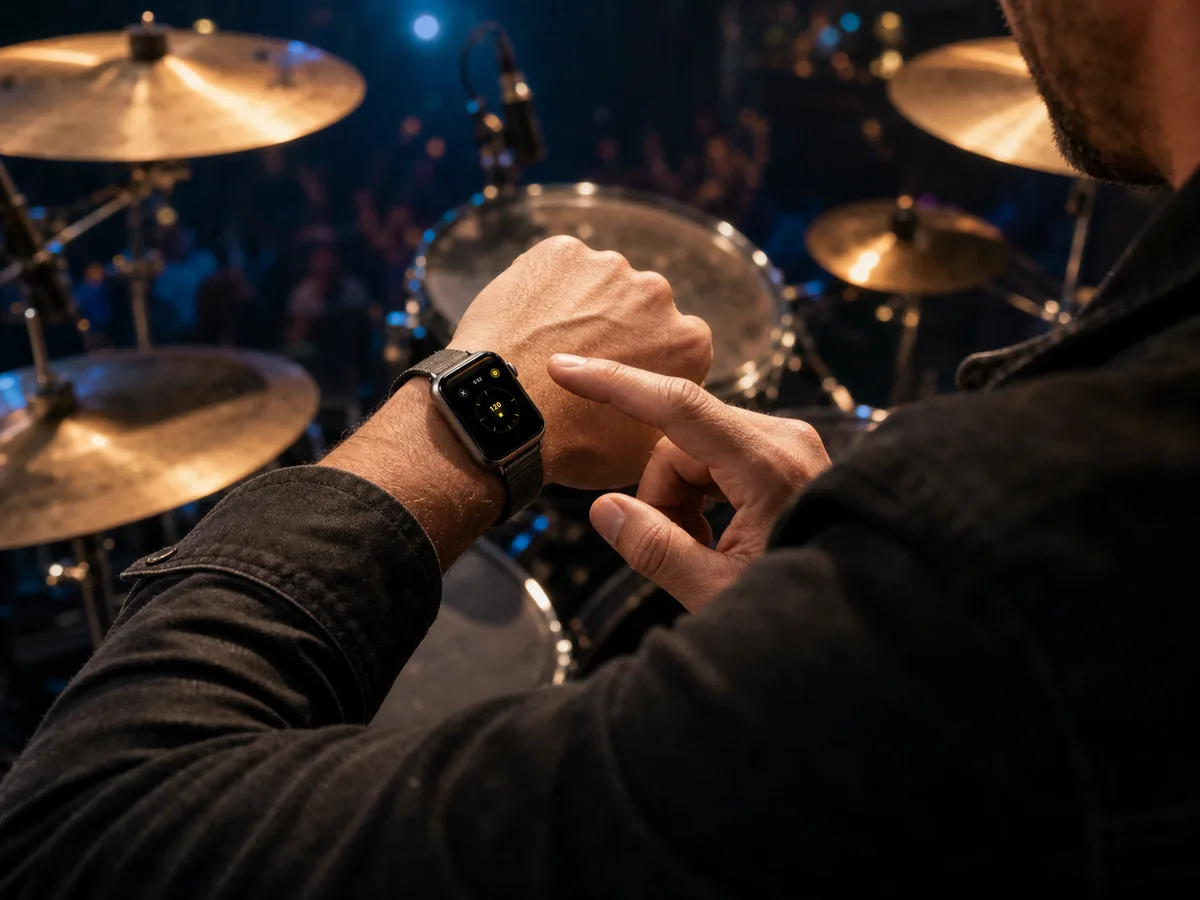
Even in live sets or rehearsals without backing tracks or in-ear monitors, check the tempo through wrist or hand vibrations without playing a click sound.

When your attention needs to move to the chart, the band, or the audience, vibration-first checking keeps the motion small.
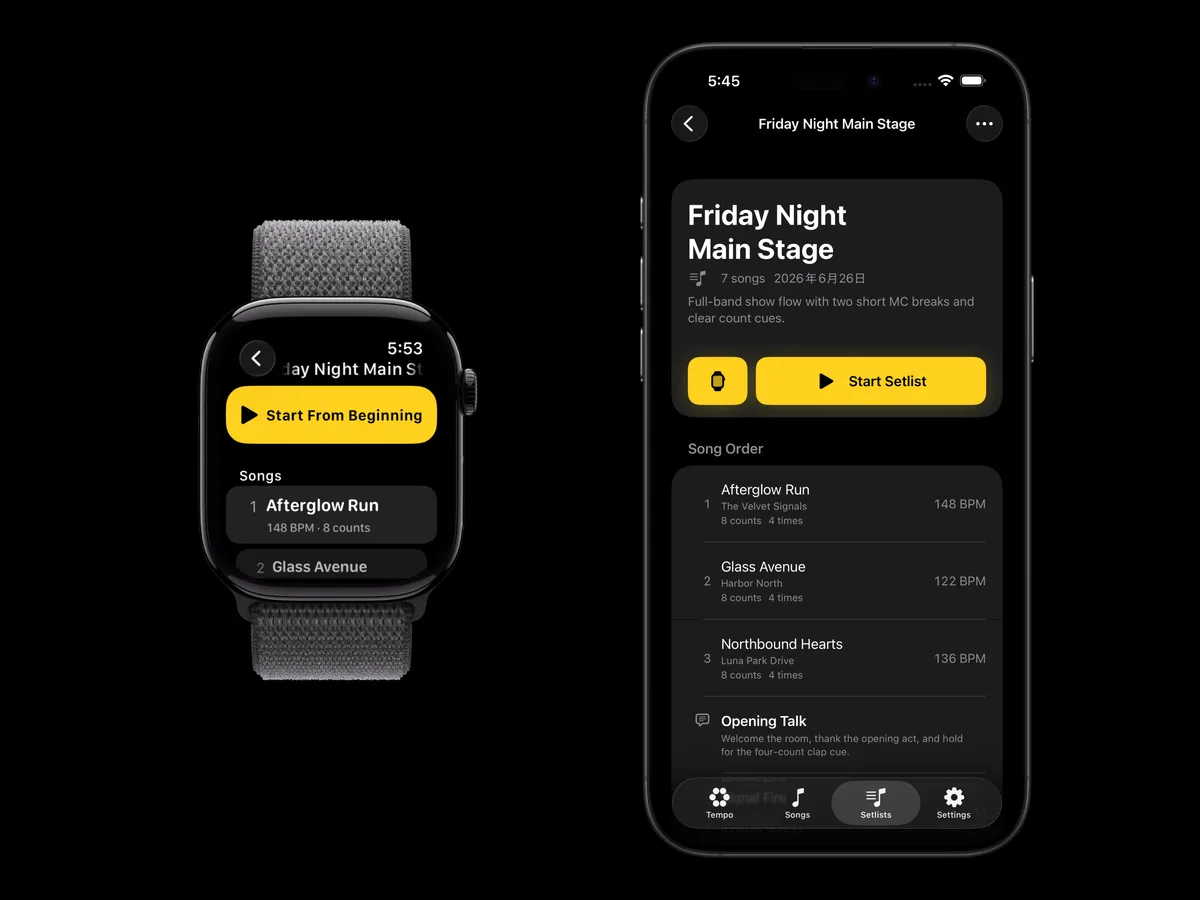
Line up BPM and count settings in song order so you can call up the next song's tempo without hesitation.
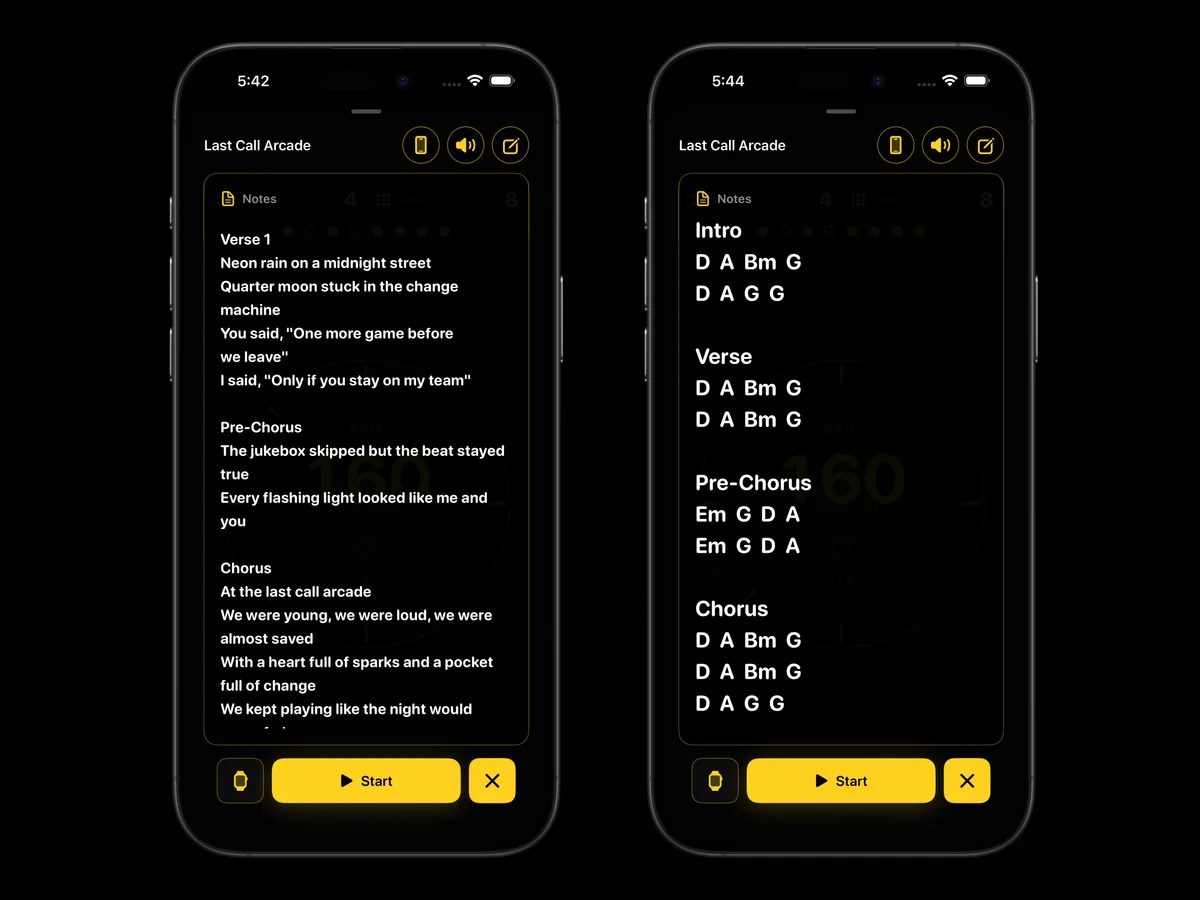
Save Notes for each song. Check them alongside BPM and count settings, with five text-size levels. (Viewing is iPhone only)
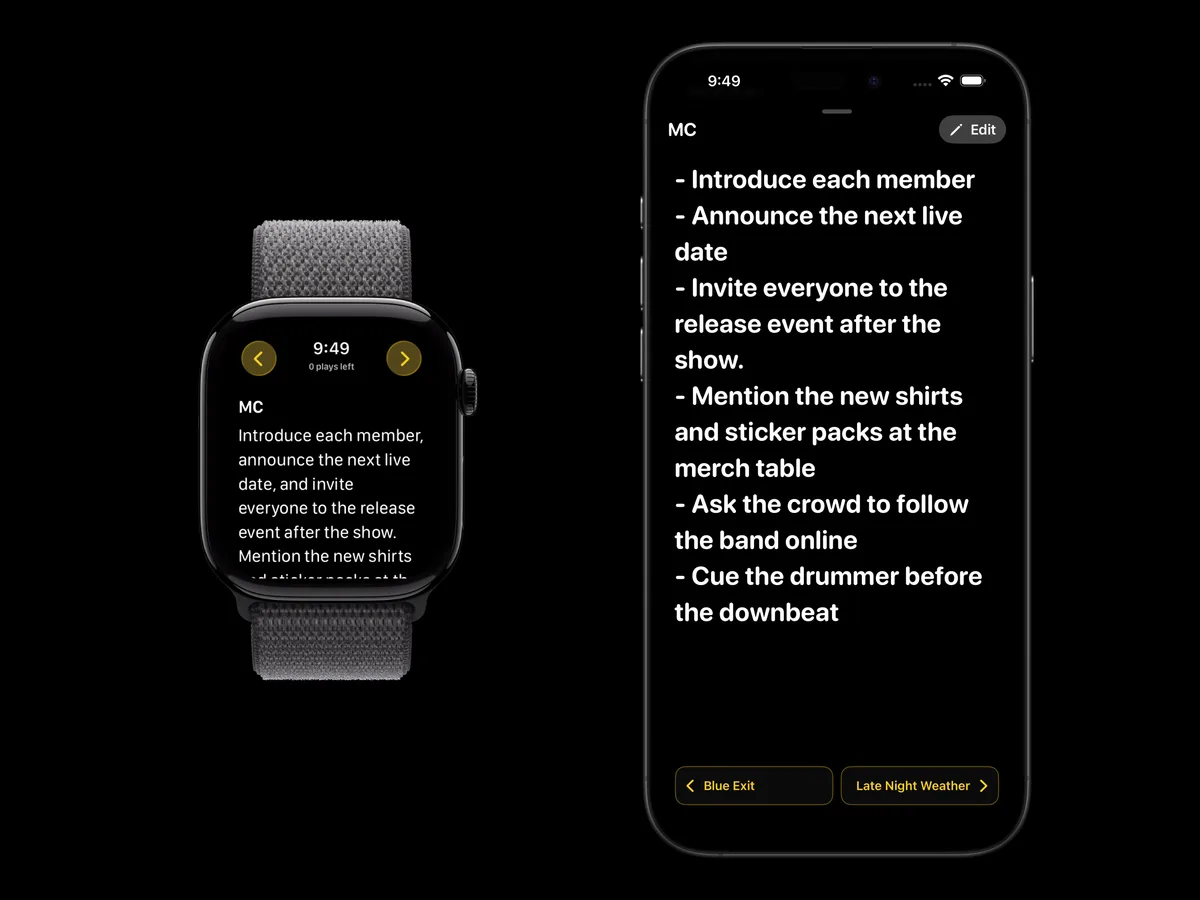
Insert text notes for announcements inside a setlist, so between-song reminders travel with the set.
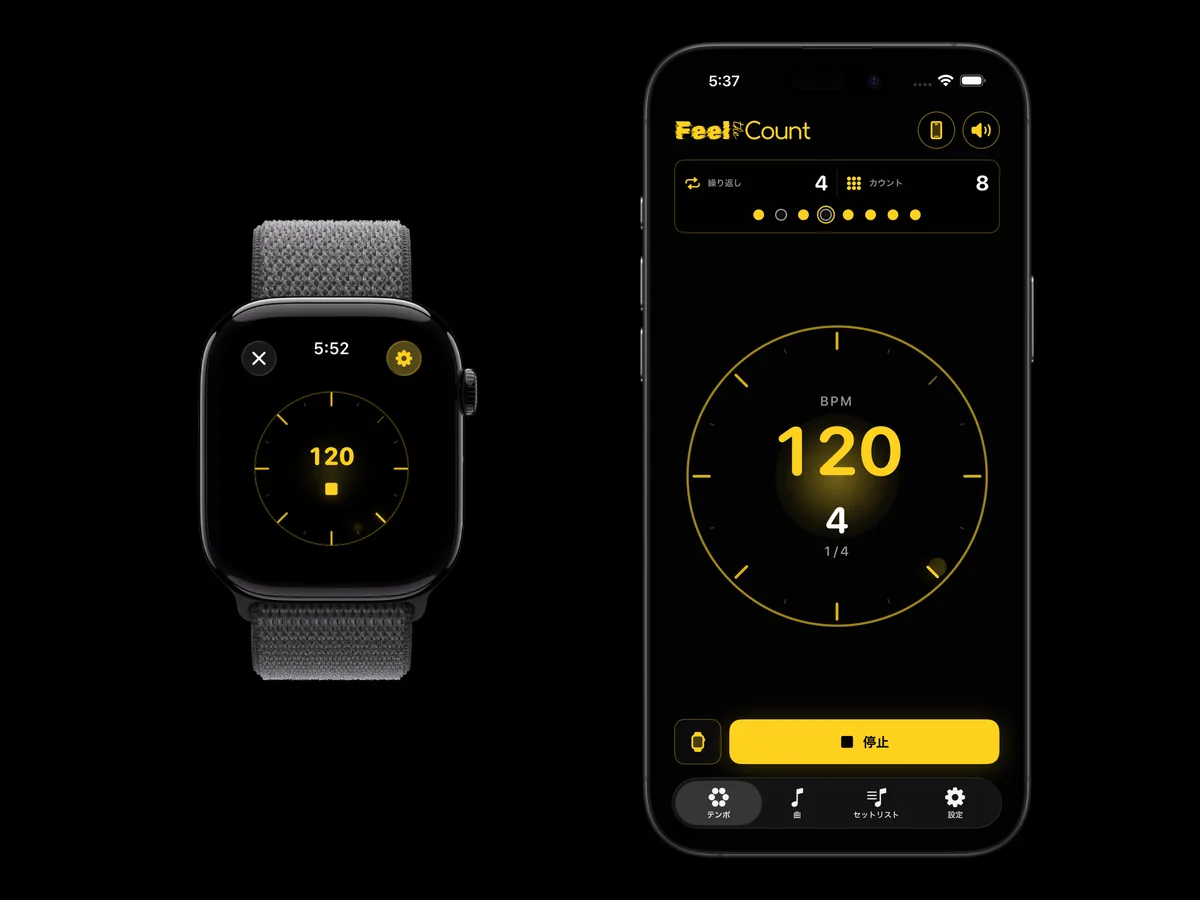
You can try it right away by setting BPM and count length, without adding a song first. Useful for sudden rehearsals or pre-session tempo checks.
Centered on vibration-based tempo checks, Feel the Count also covers setlist management, search, Apple Watch integration, and default BPM, count length, and accent settings.
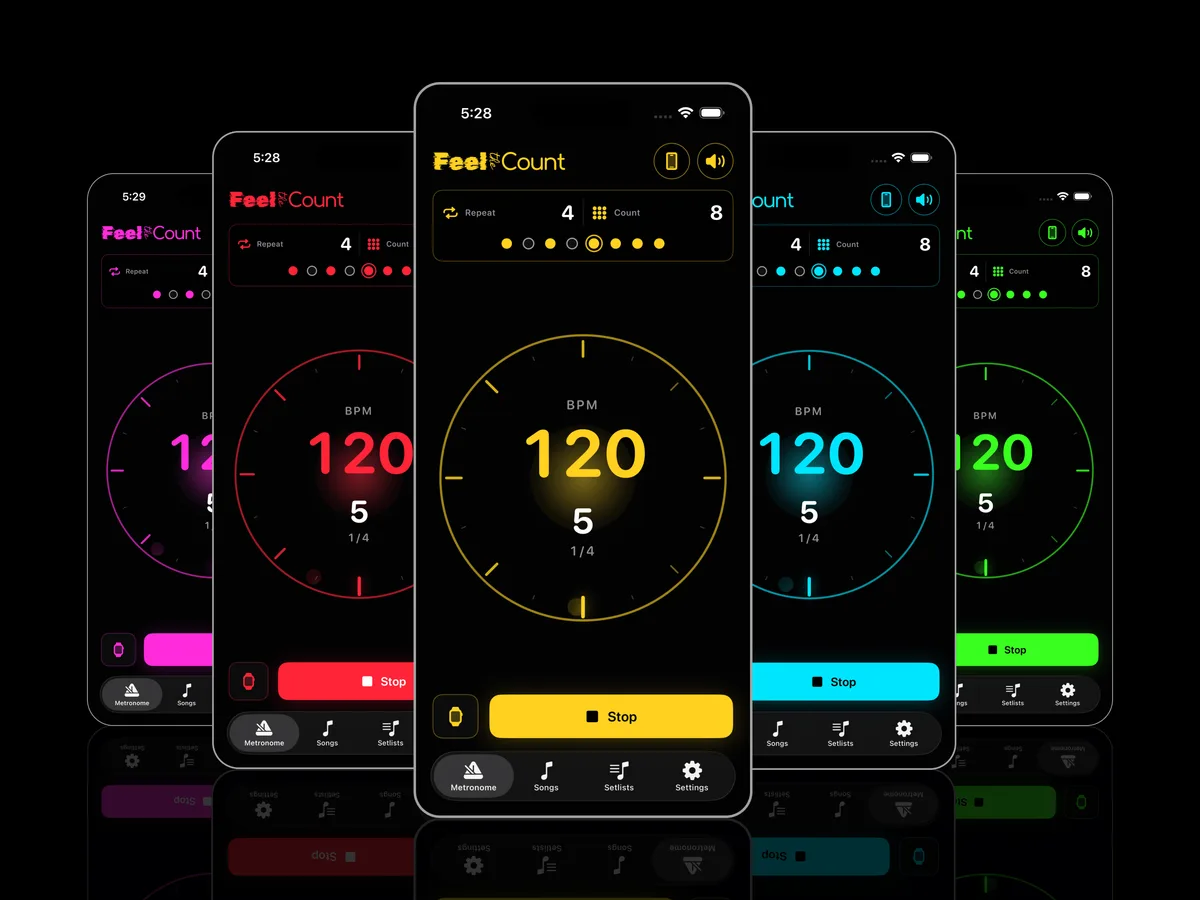
Switch the count display color to tune visibility for the stage, rehearsal room, or other situations.
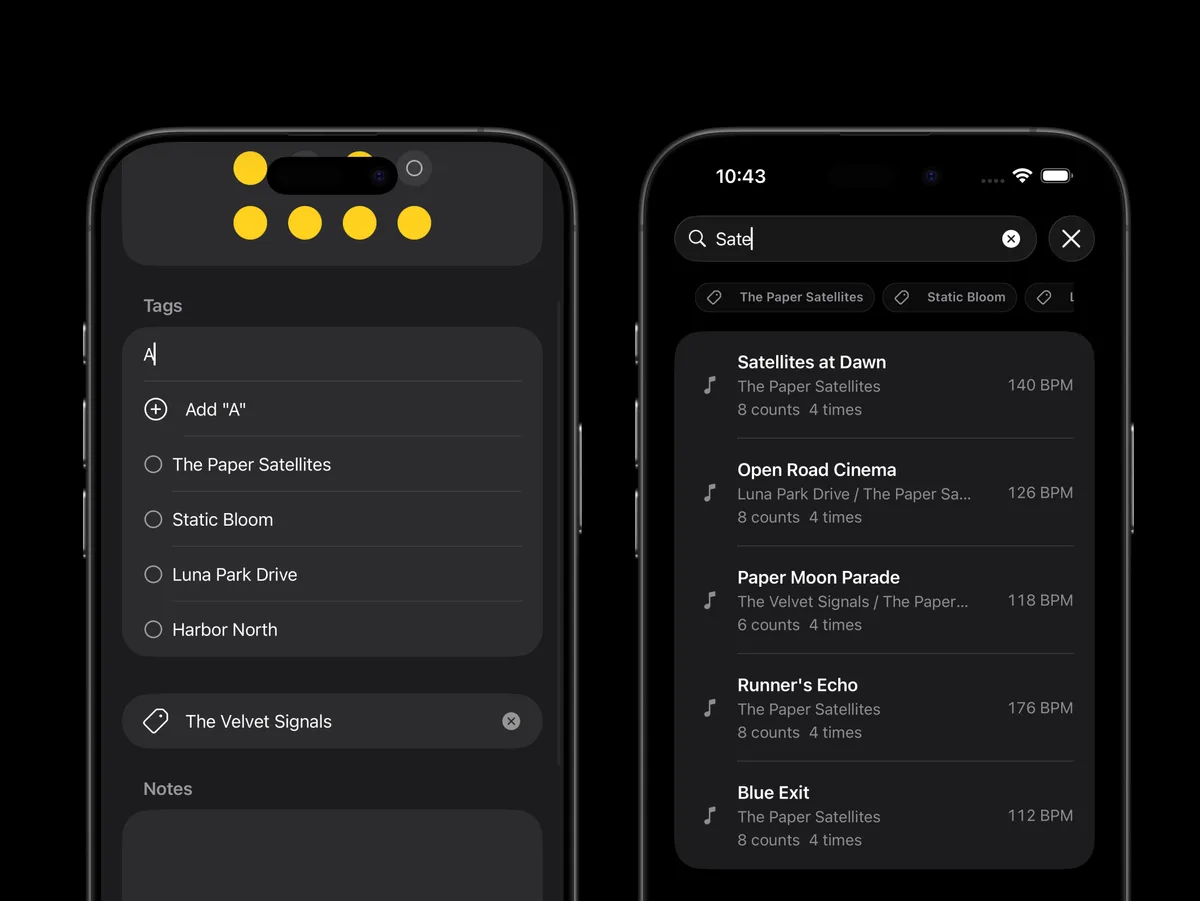
Add artist tags to songs so it is easier to find what you use for live sets and rehearsals.
Search by song title or tag to quickly find the tempo setting you need from your songs and setlists.
Switch vibration and click sound as needed. Use silent checks before a show, or click audio during practice.
Send count playback prepared on iPhone to Apple Watch and check tempo through haptics at your wrist.
Set frequently used BPM, count length, and accents as defaults so new song setup starts faster.
Yes. Feeling the tempo through Apple Watch or iPhone vibrations is the core function of Feel the Count. You can also use the screen display or click sound as needed.
You can save BPM, count length, repeat count, and accent settings for each song. Add them to a setlist to call them up in song order.
No. You can try it right away by setting BPM and count length without adding a song first. It also works for quick tempo checks before sudden rehearsals or sessions.
Yes. You can switch the metronome display color to match the place you use it and the visibility you need.
Apple Watch haptic checks are supported, but you can also use iPhone vibration, screen display, and click sounds to check tempo.
Feel the Count
Feel the Count is a count-in prep app that lets you check the BPM and count right before starting the next song through Apple Watch or iPhone haptics.