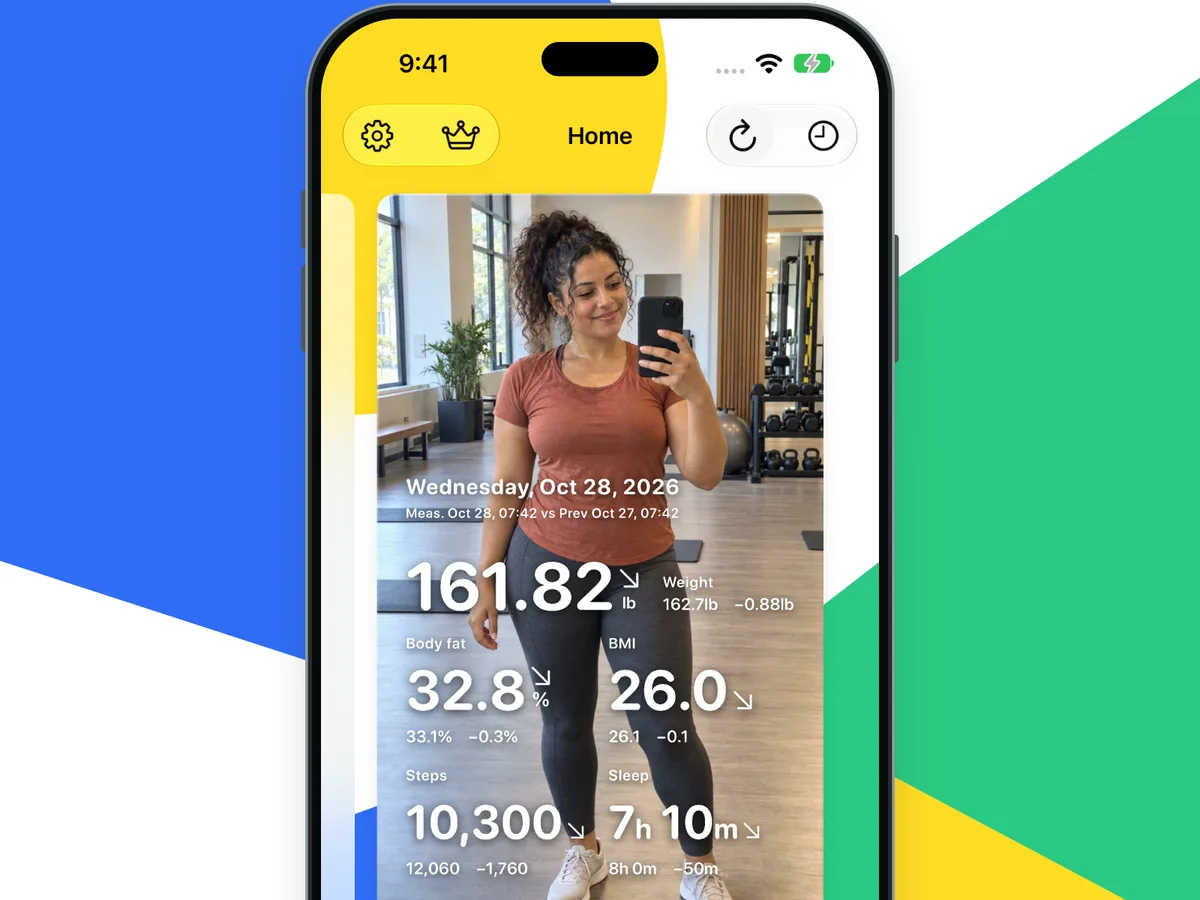
Keep a personal record with photos and a few words
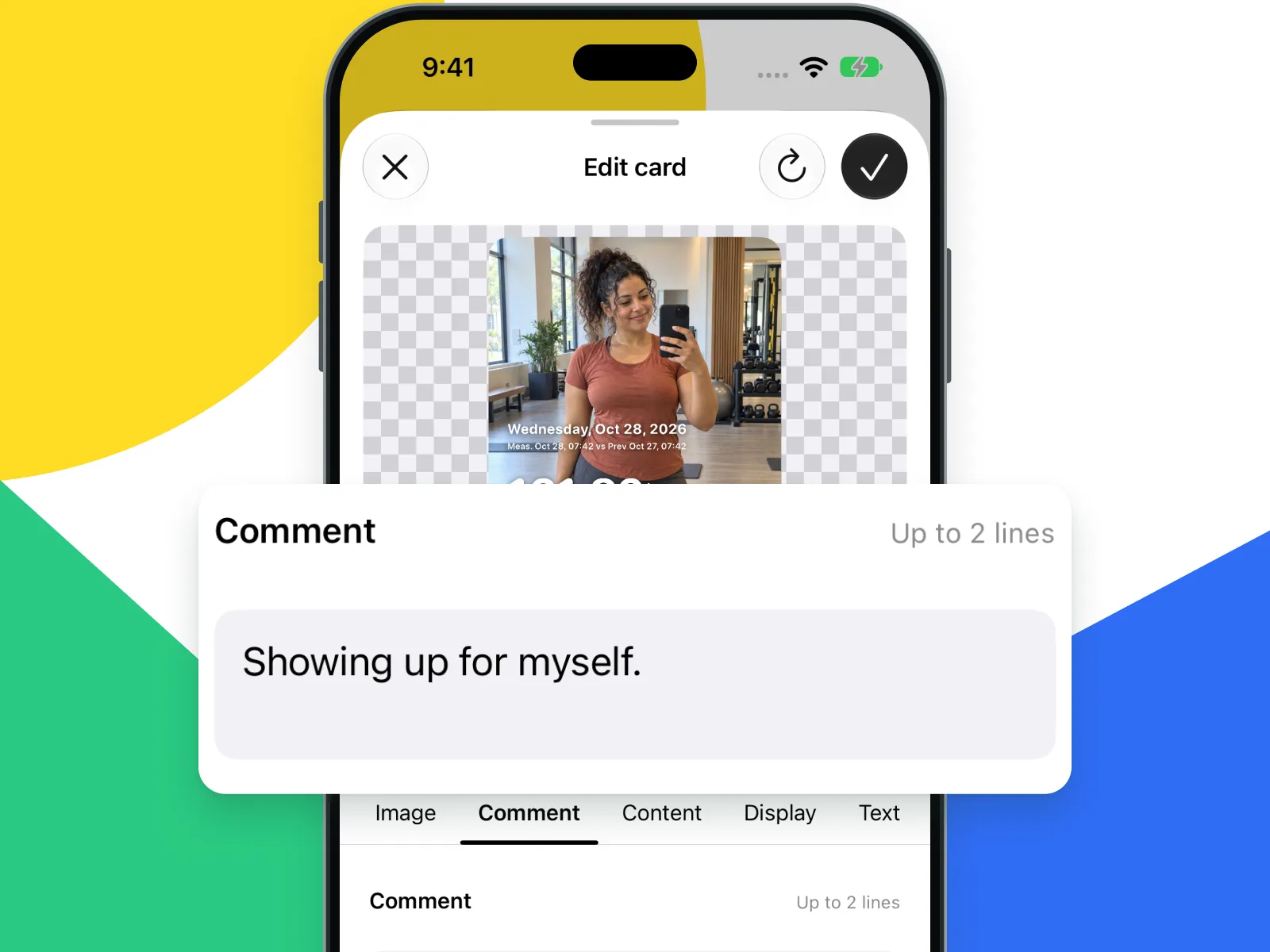
Use a favorite photo as the background and add a few words about your day. Choose colors, patterns and an avatar, or hide measurements to focus on your photo and comment.
logmio
logmio is an image creation app that turns weight-loss progress and daily activity records into cards to share with friends or on social media.

Version 1.3 / Released Nov 11, 2026
Put photos and comments at the center or focus on measurements and changes. Choose the look and the items that fit what you want to record that day.
Use a favorite photo as the background and add a few words about your day. Choose colors, patterns and an avatar, or hide measurements to focus on your photo and comment.
Read weight, steps, sleep and other records already saved in Apple Health. You can also enter values manually or review candidates read from an image before importing them.
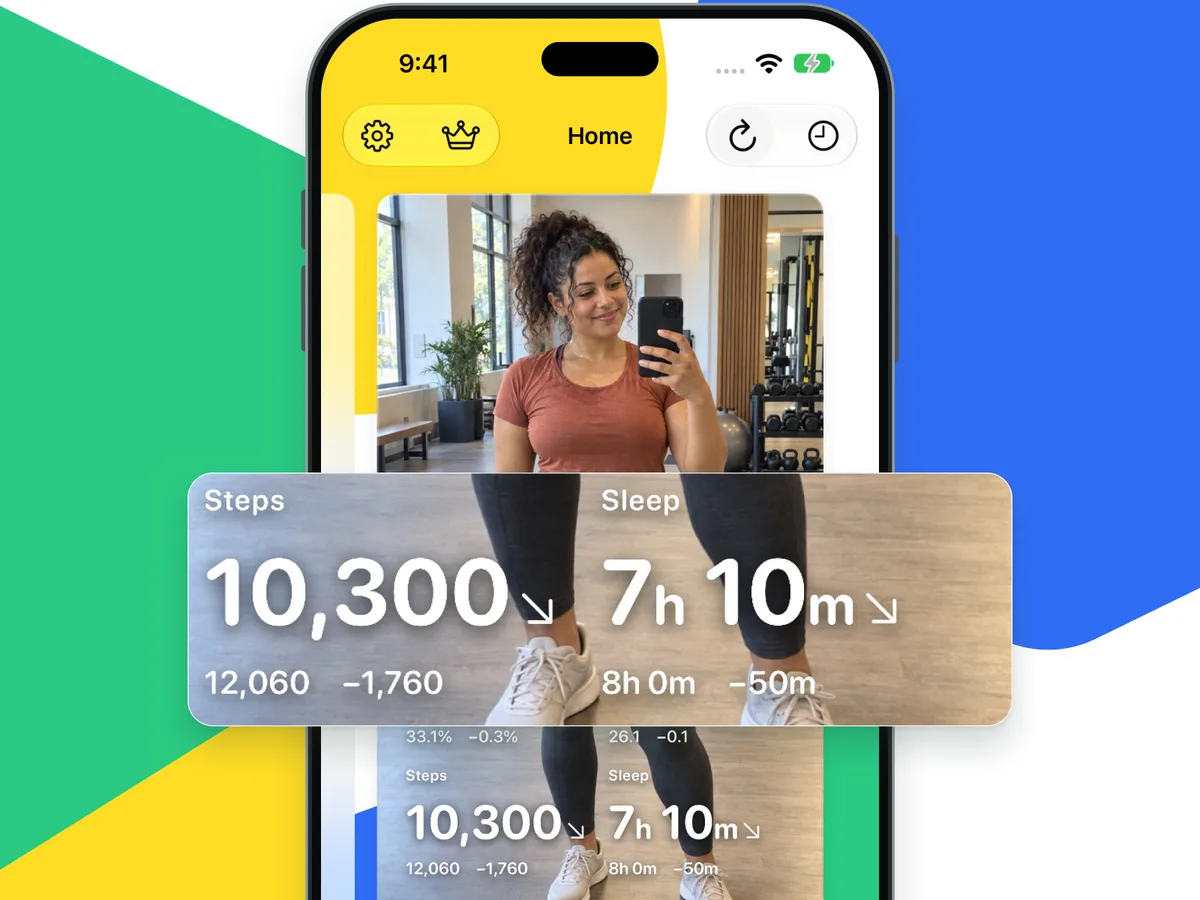
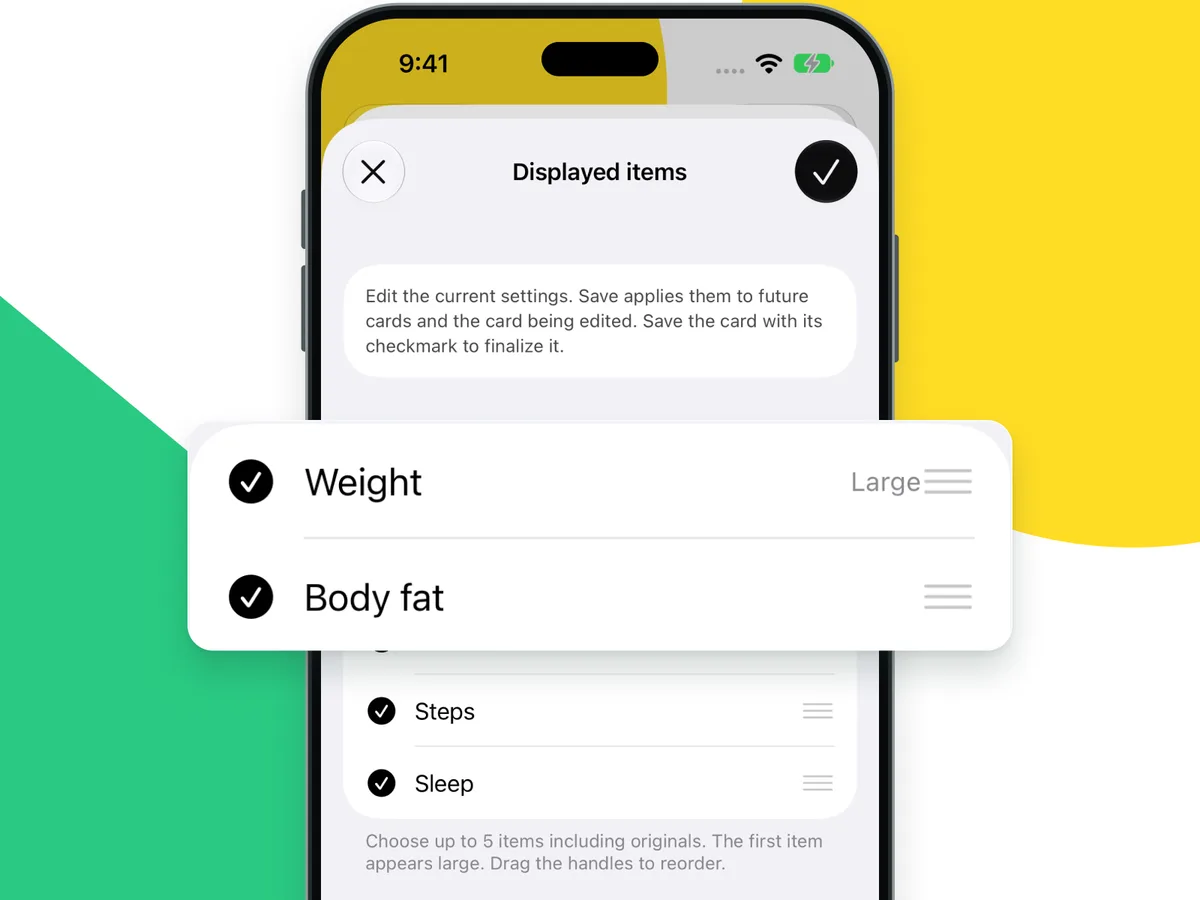
Display up to five items from 11 Health metrics, including weight, steps, sleep and energy intake, and your registered original items. The first item appears larger. Show measurements or changes and see how much remains toward a goal.
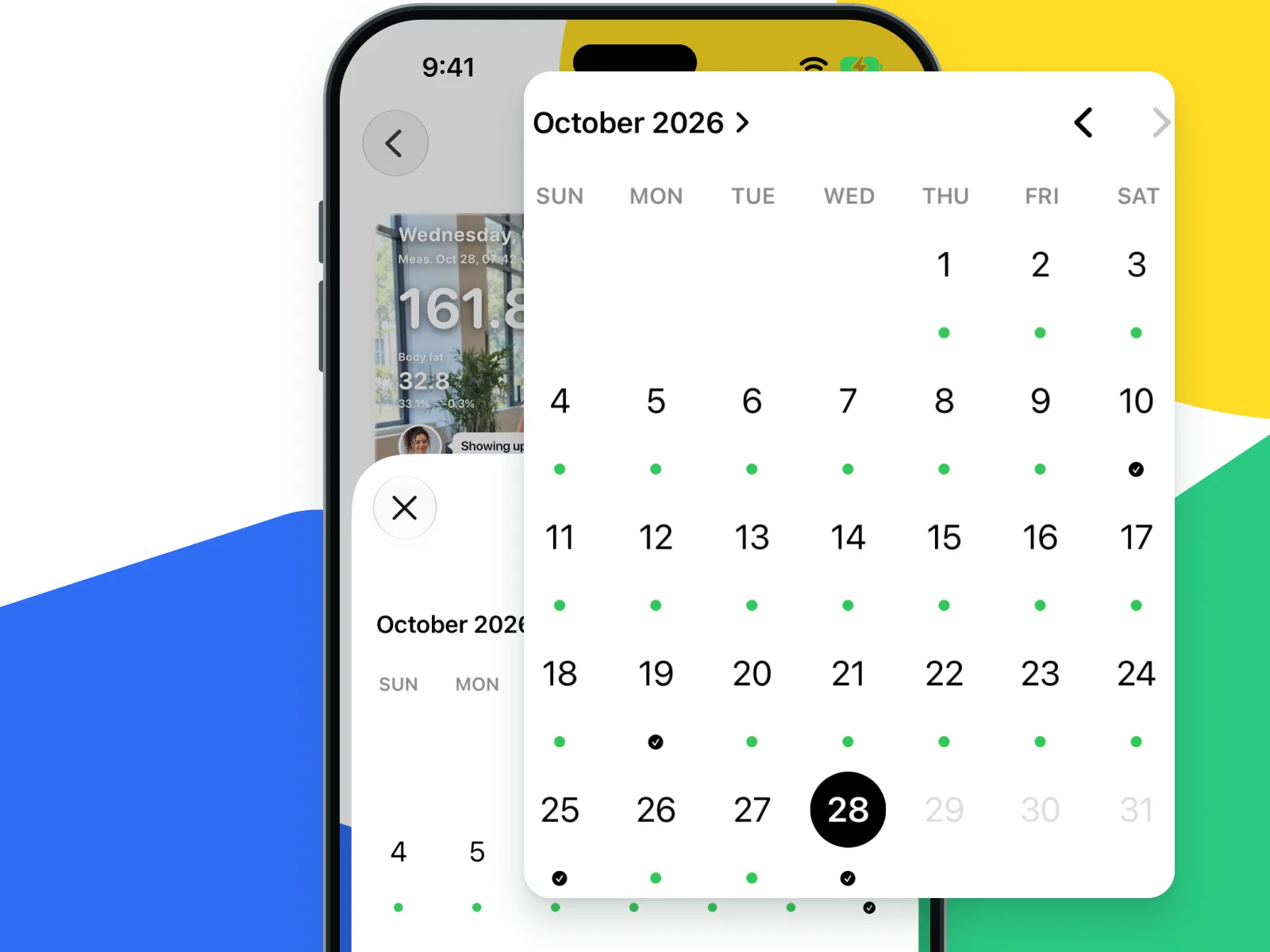
Switch between today and the previous six days on Home and revisit saved cards in History. Use the calendar to create cards for past dates with available Health records. Designs and comments are saved by date.
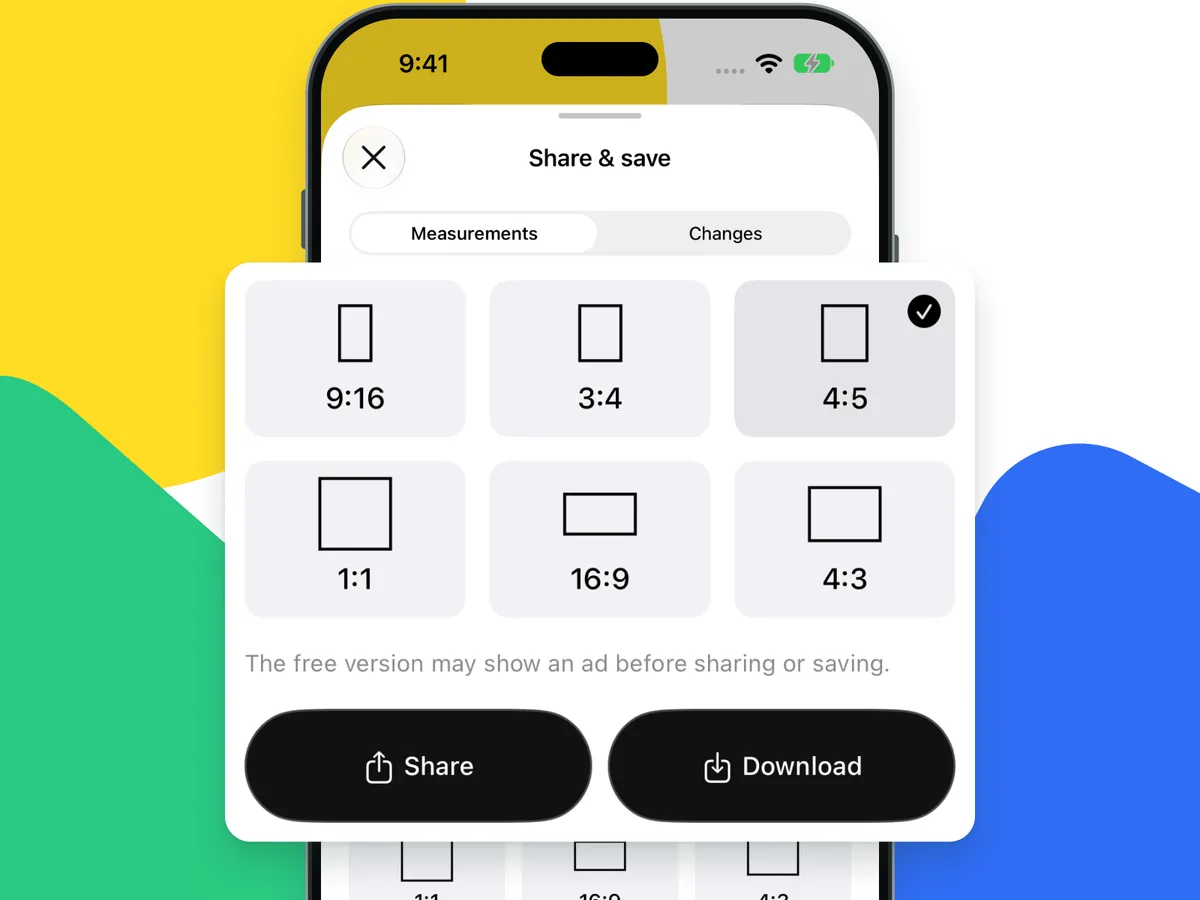
Choose from six image ratios, including portrait and square. Check the content and date in the preview, then save the image to Photos or choose a destination in the iPhone share sheet.
Metrics, backgrounds, image ratios and other features are available in the free version. It includes ads and “Generated by logmio” on exported images. logmio Plus is a one-time in-app purchase. It hides ads and turns off the image credit after purchase. You can show the credit again in Settings. There is no subscription. Check the in-app purchase screen for pricing.
For iPhone with iOS 17 or later. Automatic import requires the relevant records in Apple Health. You can also enter card values manually or read them from an image. logmio does not connect directly to measuring devices. Apple Health access is read-only; values entered or corrected in a card are not written back. Card health values, photos, names and comments are not sent to advertising or external analytics. Ad delivery and, with your consent, usage analytics or crash diagnostics may send device information. You review what to share and choose where it goes.
Yes. Changes mode shows differences from a comparison reference instead of measurements. Compare with the previous reading or a chosen day. Show or hide main and secondary metrics for each card; hide both to make a card with just a photo or comment. You can also adjust the visibility of the card date, measurement dates, comment and avatar. The display mode in app settings is a default for future cards. It does not change saved cards in bulk. Switching modes in the share preview applies only to that output.
Yes. Register up to five original items with a name and unit in Settings > Displayed items. A card can display one to five items in total, including at least one Health item. An original item can be first and appear larger. Use Enter values in the card editor to fill Health and original items together. Enter original-item values for each day; previous-value comparisons use saved values for the same item and unit. Apple Health originals are unchanged.
Yes. Fill from an image in the card editor reads supported items and values on your device. Review the candidates and choose which values to apply. Not every image or item can be recognized accurately. Image dates are not checked; values apply to the selected card. Check the card date and the dates used for activity, energy intake and other metrics. Images and recognized transcripts are not sent to a server for recognition.
Yes. On Home, choose today or one of the previous six days. For earlier dates, use the History calendar to choose a day with records available in Apple Health.
Automatically imported values are read again from Apple Health for the card date. Adding or correcting source records can change them after reloading. Saved values entered manually or accepted from an image take priority and are kept during normal reloads. For Health items, successfully reload values in the editor, apply them and save the card to return to automatic values. Changing shared settings alone does not replace saved items, goals, designs or comments. To update items, goals and related settings, choose Apply current settings in the card editor, review the changes and save.
Check that the card's main and secondary metrics are visible and that logmio has read access to the relevant Health records. Automatic import needs records for the date it uses. Steps, activity and energy intake use the previous day's totals; sleep uses the main sleep ending on the card's morning. You can also enter values manually in the card editor.
No. Check the card content and date, then save it to Photos or choose a destination in the iPhone share sheet. How the image appears or is cropped depends on the service you share it with.
2026-11-11 · v1.3 · iOS
Version 1.3 was released.
2026-11-10 · v1.2.2 · iOS
Version 1.2.2 was released.
2026-11-09 · v1.2.1 · iOS
Version 1.2.1 was released.
2026-11-08 · v1.2 · iOS
Version 1.2 was released.
2026-11-07 · v1.1 · iOS
Version 1.1 was released.
2026-11-04 · v1.0.1 · iOS
Version 1.0.1 was released.
2026-11-03 · v1.0 · iOS
Version 1.0 was released.
logmio
logmio is an image creation app that turns weight-loss progress and daily activity records into cards to share with friends or on social media.